
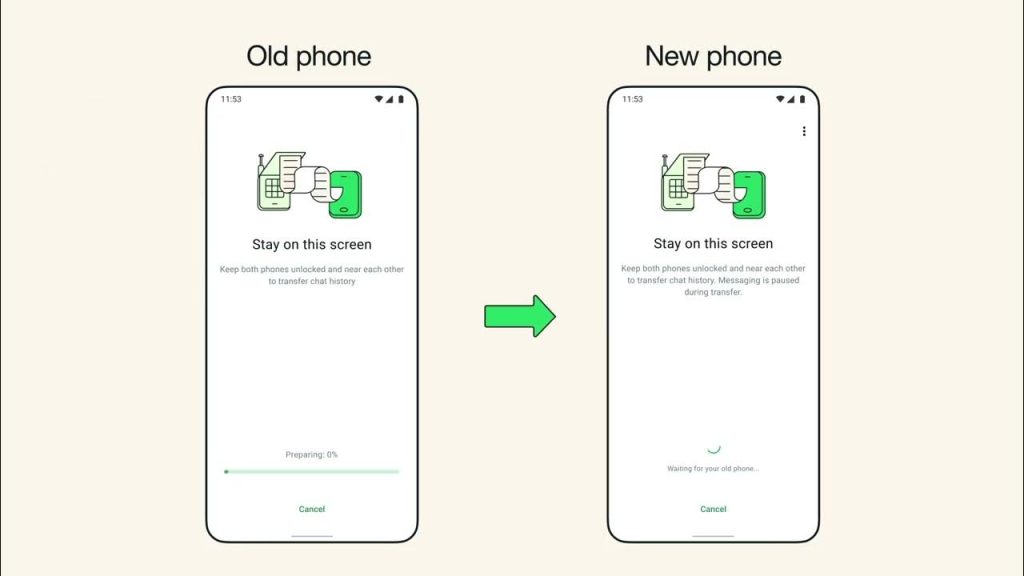
Upgrading or switching smartphones can feel stressful, especially when it comes to your important messages, photos, and videos. Many users worry about losing their chats or media during the transition. The good news is that transferring your GB WhatsApp data to a new device is simple if done correctly. This guide explains the process step by step so you can move your data safely and easily.
Why GB WhatsApp Data Transfer Is Important
Your GB WhatsApp data contains personal conversations, memorable media, and important files. Keeping this information safe becomes critical in situations like:
- Upgrading to a new phone
- Repairing or replacing your old device
- Creating a secure backup for future safety
Ensuring your data is transferred properly helps you avoid losing any valuable chats, images, or videos.
Prepare Your Backup Before Switching Devices
Preparation is key to a smooth transfer. Before installing GB WhatsApp on your new phone, create a proper backup:
- Open GB WhatsApp on your old device.
- Go to Settings → Chats → Chat Backup.
- Choose your backup method:
- Google Drive for online storage and easy restoration
- Local backup saved on your phone’s internal storage
Once the backup is complete, ensure it is stored securely. You will use this backup on your new device.
Installing GB WhatsApp on Your New Phone
After securing your backup, follow these steps to install GB WhatsApp:
- Download the latest GB WhatsApp APK from a trusted source.
- Enable installation from Unknown Sources in your phone’s settings.
- Install the APK file and verify your phone number (it must match the number used on your old device).
Restore Chats and Media Files
After verification, GB WhatsApp will detect your backup:
- Cloud Backup: If you used Google Drive, tap Restore and wait for the process to finish.
- Local Backup: Copy the GB WhatsApp folder from your old phone to the internal storage of your new device, then place it in the GBWhatsApp folder. Open the app to restore all messages, photos, and videos.
Tips for a Smooth Transfer
To avoid errors during the transfer:
- Use a stable Wi-Fi connection
- Do not close the app during backup or restoration
- Ensure your new device has enough storage
- Keep GB WhatsApp updated to the latest version
Common Transfer Issues and Solutions
Backup Not Found: Check that backup was successful, phone numbers match, and the correct Google account is active.
Chats Not Restoring: Try using a local backup if cloud restoration fails.
App Not Installing: Enable unknown sources, re-download the APK from a trusted site, and try again.
Final Thoughts
Transferring GB WhatsApp data from one device to another doesn’t have to be complicated. By carefully following the steps for backup, installation, and restoration, all your messages, photos, and videos will remain safe. Take your time, follow each step, and ensure your important conversations stay with you even when you switch phones.